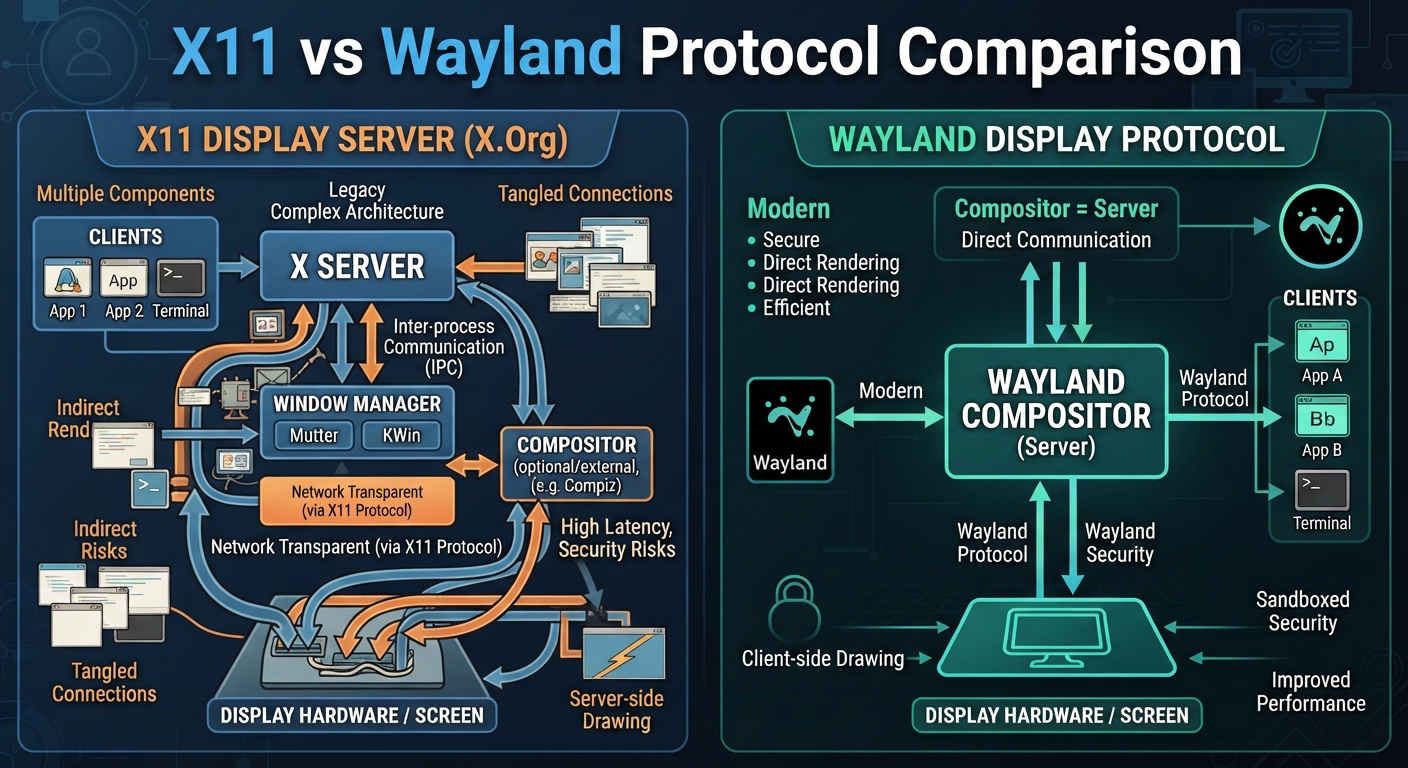
Depending on whether you are a developer, a hardcore gamer, or just someone wanting a stable workstation, the “winner” changes. Here is the pragmatic breakdown of the operational reality today.
X11
To understand X11 (the X Window System), you have to stop thinking of it as a “desktop” and start thinking of it as a network protocol for drawing things on a screen.
At its core, X11 is a Client-Server architecture. This is the most important distinction because it is counter-intuitive to how modern OSs work.
1. The Architecture: Server vs. Client
In almost every other windowing system, the “system” is the boss. In X11, the roles are split:
The X Server (The Hardware Manager)
The X Server is the process that actually runs on the machine with the monitor and keyboard.
- Its only jobs are: To listen for input (mouse/keyboard) and to put pixels on the screen.
- What it doesn’t do: It does not know how to draw a “button,” a “menu,” or a “window border.” It only knows basic primitives: “Draw a line,” “Fill a rectangle with color X,” or “Render this string of text.”
- Authority: It owns the hardware. If a client wants to put something on the screen, it must ask the X Server for permission.
The X Client (The Application)
Every single graphical application you run—your browser, your terminal, your text editor—is an X Client.
- Its job is: To handle the aplication logic and tell the Server what to draw.
- The Loop:
- Event: The X Server detects a mouse click at coordinates (x,y). It sends a “ButtonPress” event to the Client that owns that area.
- Logic: The Client receives the event, decides that the user clicked “Save,” and processes the file.
- Request: The Client sends a request back to the X Server: “Please change the color of the rectangle at (x,y)(x,y) to grey to show it was pressed.”
The Window Manager (The “Special” Client)
Crucially, the X Server does not provide window decorations (the title bar, the close/minimize buttons, or the ability to drag a window). The Window Manager (WM) is actually just another X Client. It is a “privileged” client that tells the X Server: “Whenever a new window is created, I want you to wrap it in a frame with a title bar and a close button, and I will decide where on the screen it sits.”
2. The “Killer Feature”: Network Transparenc
Because X11 is a client-server protocol, the Client and the Server do not have to be on the same machine.
You can run an X Server on your laptop (the hardware) and run the X Client (the app) on a powerful remote server via SSH. The app processes the data on the server, but sends the “Draw this rectangle” commands over the network to your laptop’s X Server.
- Command:
ssh -X user@remote-server "firefox" - Result: Firefox runs on the server’s CPU/RAM, but the window appears on your local screen.
3. The Critical Flaws (The “Why Wayland?” part)
X11 was designed in 1984. The world has changed, and X11’s design has become a liability:
A. The Security Hole (Global Trust)
In X11, any client can communicate with any other client via the X Server.
- The Reality: A malicious app (Client A) can tell the X Server, “Please send me every keystroke that goes to Client B (your password manager).”
- The X Server, by design, allows this. This is why X11 is fundamentally insecure by modern standards.
B. The “Tearing” Problem
X11 does not have a built-in concept of “vertical sync” (Vsync). The Server just draws things as soon as the Client asks. If the Client updates the screen while the monitor is mid-refresh, you get a screen tear (a horizontal line where the top half is one frame and the bottom half is another).
- Solution: We had to invent “Compositing Window Managers” (like Picom or Mutter) to act as a buffer, which adds another layer of complexity and latency.
C. The Round-Trip Latency
The “Event → Client → Request → Server” loop creates a “round-trip.” While negligible on a single machine, it becomes a massive bottleneck over networks or when dealing with high-refresh-rate displays (144Hz+), as the protocol overhead is huge.
Summary for the Pragmatist
X11 is a distributed drawing system. It is incredibly flexible and allows you to run apps remotely, but it does so by sacrificing security and visual synchronization. It has survived this long not because it is the best design, but because it is a universal standard that “just works” for almost every piece of Linux software ever written.
Wayland
To understand Wayland in deep detail, you have to first discard the idea that it is a “replacement for the X Server.”
Wayland is not a server; it is a protocol.
While X11 is a piece of software (the X Server) that implements a protocol, Wayland is strictly the set of rules for how a client (an app) and a compositor (the server) should talk to each other.
1. The Architecture: The Rise of the Compositor
In X11, you had a fragmented chain: Application → X Server → Window Manager → X Server → Hardware.
Wayland collapses this entire chain into a single entity: The Compositor.
The Compositor is the “all-in-one” boss. It is simultaneously:
- The Display Server: It manages the hardware and input.
- The Window Manager: It decides where windows go and how they look.
- The Compositor: It blends all the different window images into one final frame.
The Workflow:Application → Compositor → Kernel (KMS/DRM) → Hardware
2. The Rendering Pipeline: “Buffers, not Commands”
This is the most significant technical leap.
The X11 Way (Imperative):
X11 uses “drawing commands.” An app tells the server: “Draw a line from A to B, then put a blue rectangle here.” The server then figures out how to render those commands. This is slow and requires the server to do a lot of work.
The Wayland Way (Declarative):
Wayland uses “shared buffers.” The app does all the rendering itself (usually via OpenGL or Vulkan) into a chunk of memory called a buffer.
- Rendering: The app renders its entire window into a buffer in the GPU/RAM.
- Handoff: The app tells the compositor: “I’m done. Here is a handle to my buffer. Please show it.”
- Compositing: The compositor takes the buffers from all open apps, stacks them according to who is on top, and creates one single image for the entire screen.
- Display: The compositor sends that final image directly to the kernel’s KMS (Kernel Mode Setting) to be displayed.
Result: This is why Wayland is faster and smoother. The “heavy lifting” of rendering is distributed to the apps, and the compositor only has to “paste” the result.
3. “Every Frame is Perfect” (No Tearing)
In X11, the server could update the screen while the monitor was in the middle of a refresh, causing a “tear.”
In Wayland, the protocol is designed so that the compositor never provides a partial frame. The compositor waits for the monitor’s vertical refresh signal (Vsync) and then flips the entire screen image at once. Because the compositor controls the final output and the timing, screen tearing is mathematically impossible by design.
4. Security by Isolation
X11’s greatest flaw was that every app lived in the same “room.” If you could talk to the X Server, you could talk to any other app.
Wayland implements Strict Isolation:
- No Global Sight: An app has no idea that other apps exist. It only knows about its own buffer and the compositor.
- Controlled Input: The compositor decides exactly which app receives keyboard and mouse events. An app cannot “listen” to keystrokes intended for another window.
- The “Portal” Solution: Because this isolation breaks things like screen sharing or global hotkeys, Wayland uses XDG-Portals. When you want to share your screen, the app asks the Portal → the Portal asks the Compositor → the Compositor asks the User → the User grants a temporary permission.
5. The Implementation Gap (Why it took so long)
Since Wayland is just a protocol (a set of rules) and not a program, someone had to write the actual compositors. This created a massive engineering hurdle:
- The Heavyweights: GNOME developed Mutter and KDE developed KWin. These are massive, complex pieces of software that implement the Wayland protocol.
- The Library: To prevent every single developer from having to write a compositor from scratch, wlroots was created. It is a library that provides the “boring” parts of the protocol. This allowed lightweight compositors like Sway and Hyprland to exist.
The Core Difference
- X11 (X Window System): A client-server architecture from the 80s. The X Server acts as a middleman between the window manager and the hardware. It is flexible and battle-hardened but carries 40 years of legacy baggage.
- Wayland: Not a server, but a protocol. It replaces the middleman. The “Compositor” (e.g., Mutter in GNOME, KWin in KDE) handles both the window management and the actual rendering to the screen.
Comparison Table
| Feature | X11 | Wayland |
|---|---|---|
| Architecture | Client ↔ Server ↔ Hardware | Compositor ↔ Hardware |
| Security | Poor. Any app can log keystrokes or read other windows (by design). | Strong. Apps are isolated; the compositor controls who sees what. |
| Visuals | Prone to “screen tearing” without a separate compositor. | “Every frame is perfect.” Tearing is virtually eliminated by design. |
| Performance | Higher overhead due to the middleman. | Lower latency and generally smoother animations. |
| HiDPI/Scaling | Poor. Whole-screen scaling usually; fractional scaling is a mess. | Excellent. Supports per-monitor scaling and fractional scaling. |
| Compatibility | Maximum. Everything works. | High, but relies on XWayland to run old X11 apps. |
The Trade-offs (Operational Reality)
1. The “XWayland” Bridge
Wayland doesn’t magically make X11 apps work; it uses a translation layer called XWayland. For 90% of users, this is invisible. For the other 10%, it can cause blurriness on HiDPI screens (since XWayland often scales the image rather than the UI) or input lag in specific legacy tools.
2. NVIDIA Issues
For years, NVIDIA resisted the Wayland transition because they insisted on using their own extensions (EGLStreams) instead of the standard (GBM). While recent drivers (550+) have significantly fixed this with Explicit Sync, X11 is still the “safe bet” for NVIDIA users who encounter flicker or crashes on Wayland.
3. Remote Desktop & Global Hotkeys
- X11: Because it’s insecure, it’s easy to make “Global Hotkeys” or remote-control apps (TeamViewer, AnyDesk).
- Wayland: Because it’s secure, it’s hard. Apps cannot simply “spy” on the keyboard. Everything must go through “Portals” (PipeWire for screen sharing, specific compositor APIs for hotkeys).
Verdict: Which one should you use?
Use Wayland if:
- You use AMD or Intel GPUs (the experience is nearly flawless).
- You have a multi-monitor setup with different resolutions or refresh rates.
- You value security and a smooth, tear-free UI.
- You are using a modern desktop environment (GNOME or KDE Plasma 6).
Stay on X11 if:
- You rely on specialized legacy software that breaks under XWayland.
- You use complex window management tools (like certain Tiling Window Managers) that haven’t migrated to Wayland (though Hyprland/Sway are excellent alternatives).
- You have an older NVIDIA GPU and experience flickering or instability on Wayland.
- You need deep, system-wide remote access/automation tools that aren’t yet Wayland-compatible.
